

You have anAll-Access Membership for Teams. That means you and anyone you share your membership with will have full access to all of Swimming Ideas’ online courses, tools, and documents.
This is the easiest way to share training, ensure consistency, and provide resources for you and your staff to deliver high-quality, fun, and effective swimming instruction.
Where to Find Your Team
Start by logging into your account athttps://www.swimminglessonsideas.com/my-account/.
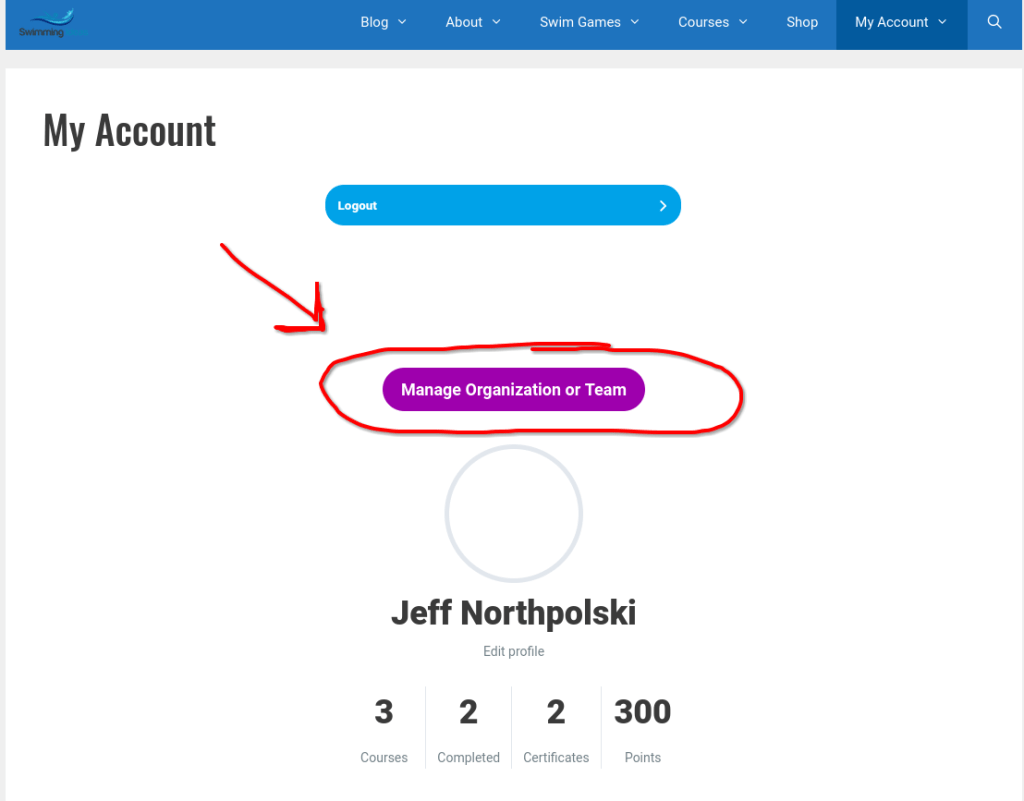
Click on “Manage Organization or Team”
Clicking this button takes you to your team’s page. From here, you can add new members, track learning progress, and send emails.
Create a Team Inside Your Organization
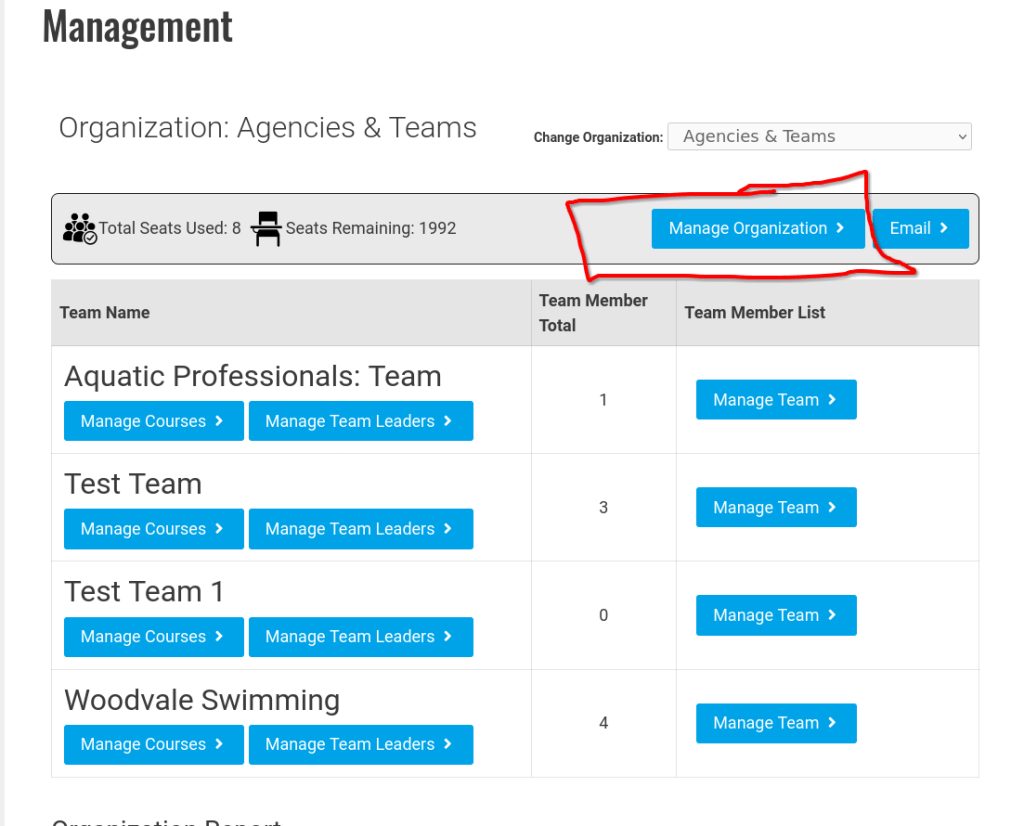
Click on “Manage Organization” to create your first “team.”
Your organization is something like “Woodvale Park District.” Your team is something like “swim instructors.” In the future, you may be able to create your own courses and assign them to different teams within your program.
Click “Add Team”
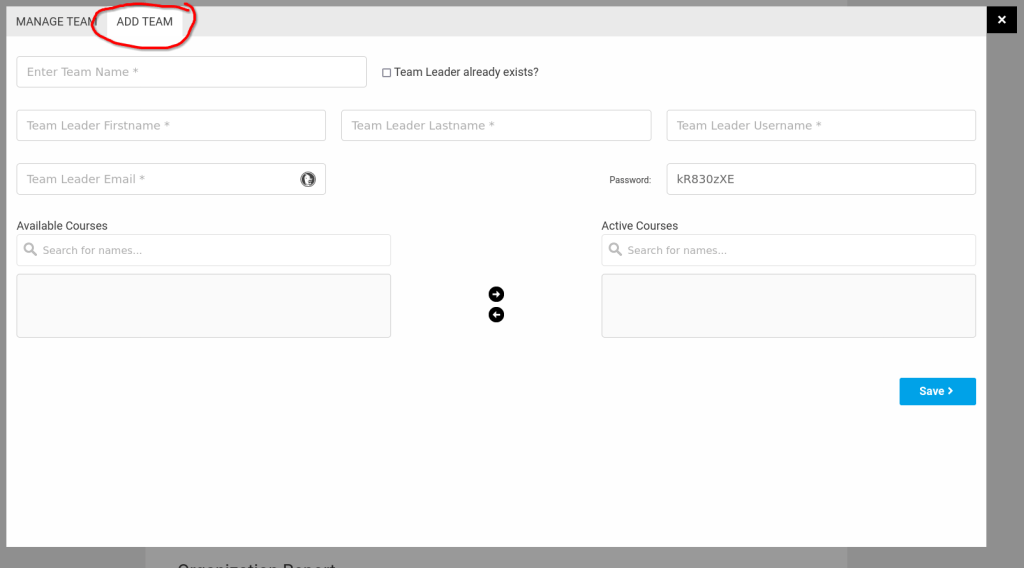
Enter the name of your new team (e.g., “swim instructors”). Then choose a team leader—typically this is you. Check the box “Team Leader already exists” and select yourself. When adding new leaders, you can select people already in your organization. Leave the additional courses blank—you and your members already have access to all Swimming Ideas online courses.
New Hire? Add Them to Your Team
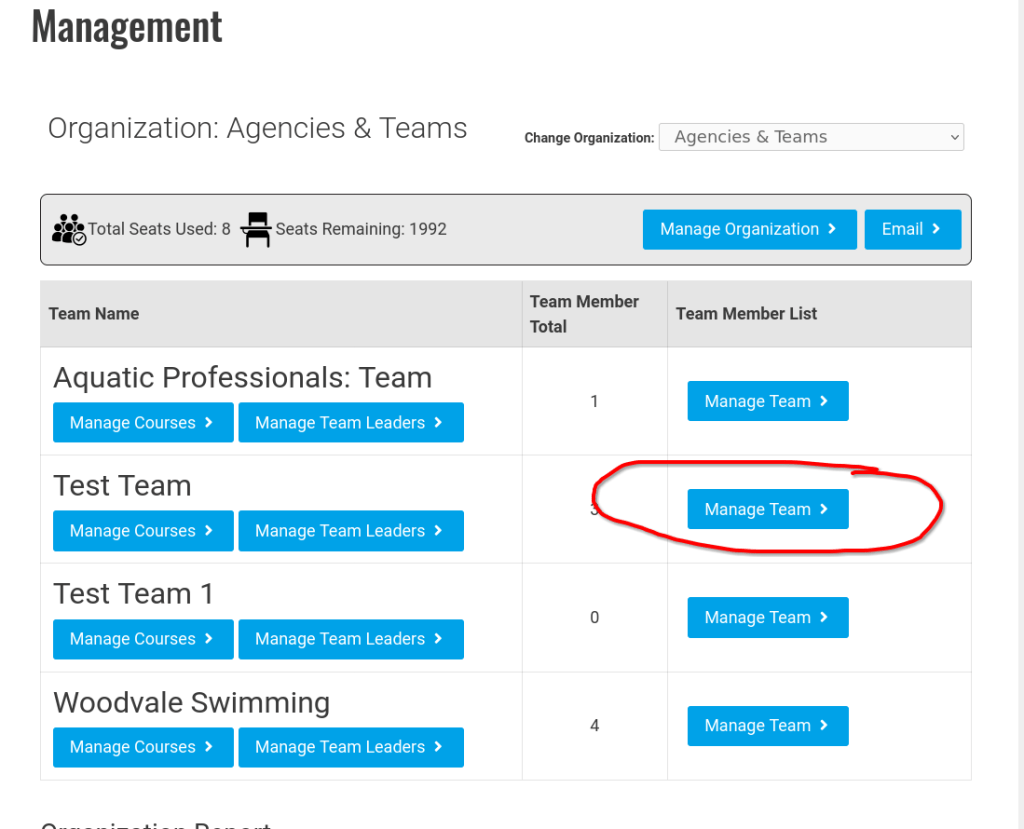
Go tohttps://www.swimminglessonsideas.com/management/and click “Manage Team” next to your new team’s name.
Click “Add Team Member”
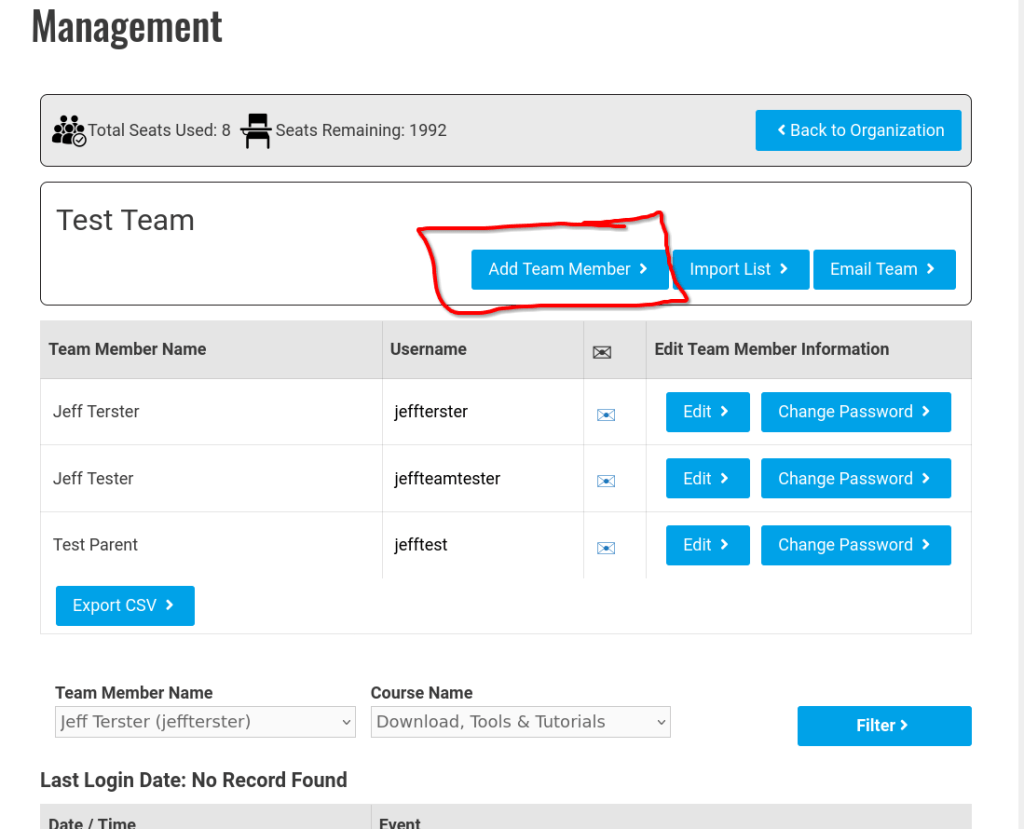
This takes you to a screen where you can enter your new hire’s information. The system will email them their:
- Username
- Password
- A link to the Swimming Ideas My Account page
Have your new hire check their email, log in with the provided credentials, and they’ll see their courses on that page.
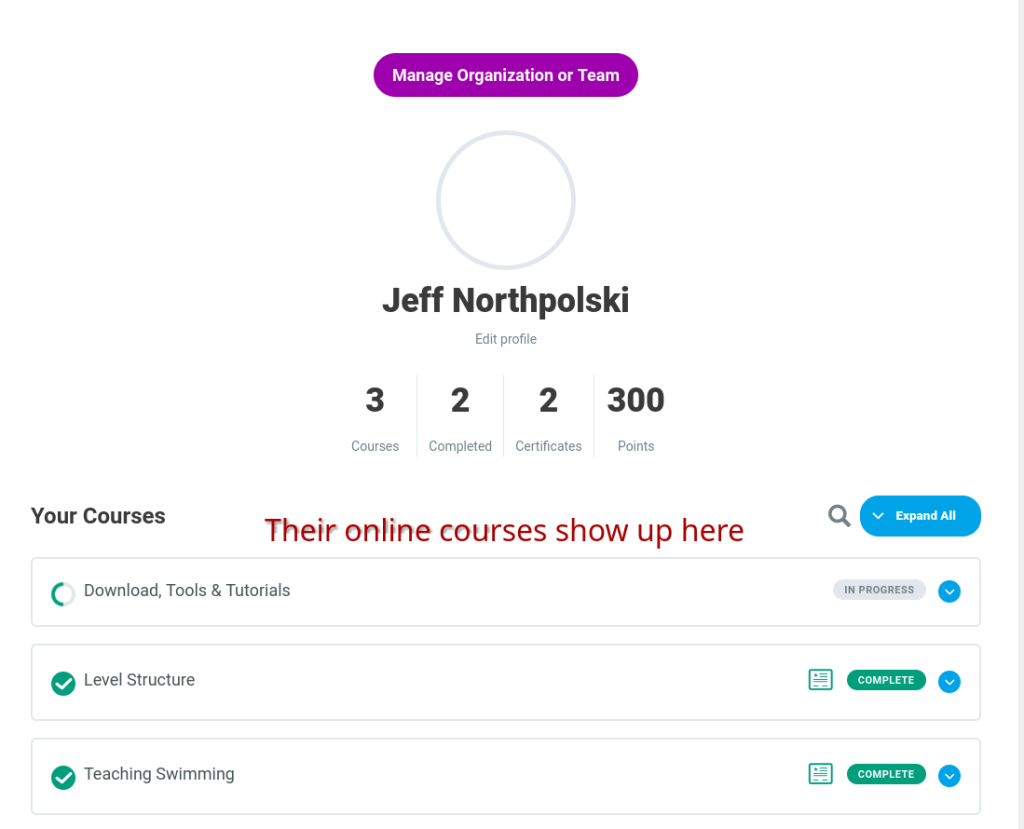
See member progress
When you’re logged in as a team leader or an Organization head (person who created theAll Accessfor Teams subscription) you’ll be able to see every member of your organization’s progress in the online courses. Use this to track progress, and verify completion of their training.
This is on the Management page under “Manage Team.”https://www.swimminglessonsideas.com/management/
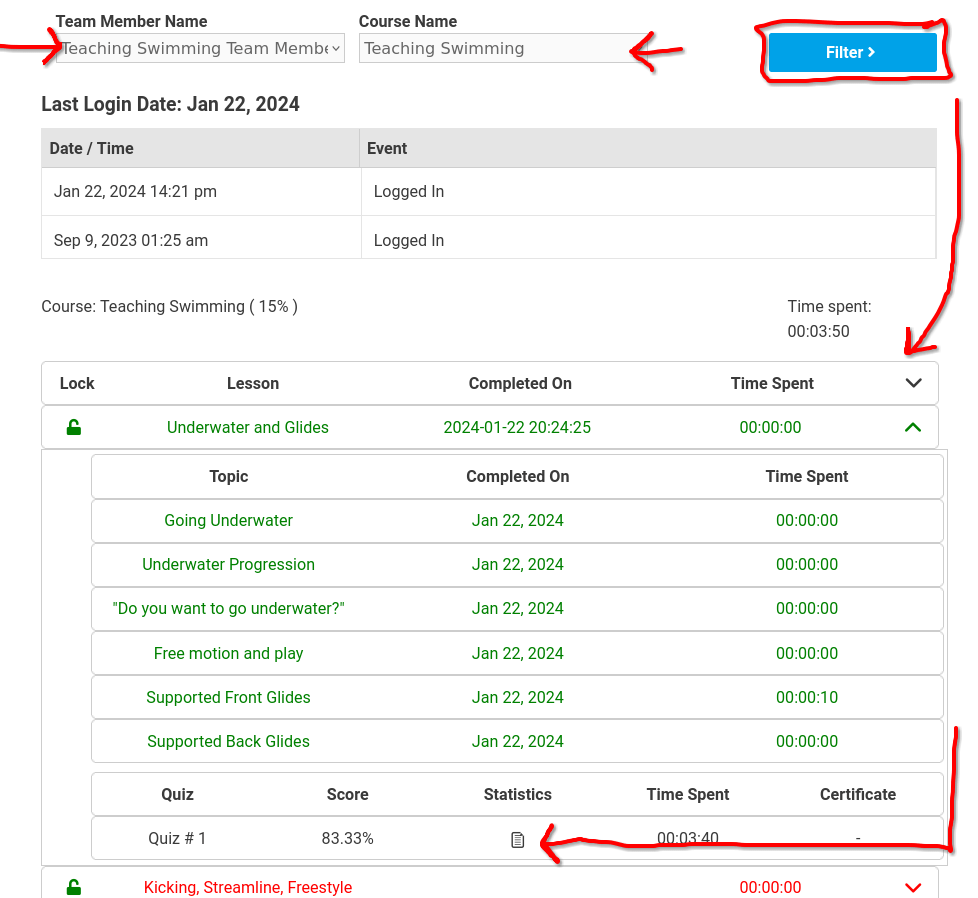
Choose the person on the left under “Team Member Name.”
Click the course you want to see progress on under “Course Name.”
Click “Filter.”
Below you’ll see a list of their progress. Green means they’ve completed the course.
You can see a list of their Quiz and Test attempts along with the statistics associated with that test.
If they’ve completed the course you can download their certificate if needed.
Discussion0 comments